Last reviewed: 27 May 2026
XX4 App Dashboard and Mobile Feature Guide
Once access is ready, use this walkthrough to understand the XX4 home panel, account areas, game menus and routine phone controls.

Dashboard basics
Check the app home screen before you begin
Start by learning the XX4 layout. Identify the home panel, profile area, wallet and balance indicators, support links and current notices so important prompts are not skipped before you open a game.
Keep setup separate from play: confirm the correct profile, review the game section, then read any wallet or reward notice that could affect the session. This order helps prevent mistaken taps.
- Check that the displayed profile belongs to you
- Find the in-app help section
- Review wallet and home panel labels before acting
- Read the latest app notices before opening a game
Mobile navigation
How the XX4 sections are organised on mobile
A useful mobile layout keeps profile controls together, groups games clearly and makes support easy to reach. New users should learn where these sections are before changing sign-in details.
Do not manage account or wallet screens while distracted. Similar-looking labels on a small display make deliberate taps safer than correcting a rushed action later.
Practical note
Make the screen easier to use
Increase the phone's display size when text is difficult to read, and rotate the screen only when supported. Make account decisions from the live app, not another user's screenshot.
Wallet and account labels
Review wallet and profile labels before acting
Treat wallet, balance, bonus, deposit and withdrawal screens as sensitive. Confirm the amount, method and account name before moving ahead, and never post screenshots that expose payment or personal information.
The purpose of this page is to help users interpret the app, not pressure them to act. It therefore focuses on checking labels and details, with support used whenever a screen is unclear.
Performance and connection
Improve app performance on an everyday phone
Close demanding apps running in the background, leave available storage and stay on one network while a page loads before a longer session. Many apparent app problems are actually caused by unstable phone conditions.
If a screen loads slowly, wait rather than tapping the same control several times. Examine the connection and follow troubleshooting or support guidance if the delay returns.
Visual walkthrough
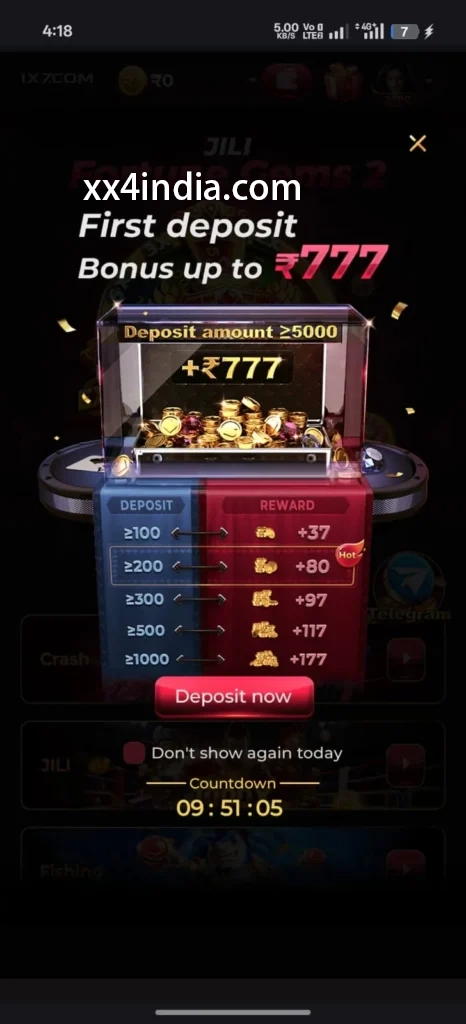
XX4 App Home panel Screen Examples
Treat these screenshots as layout references only; always follow the current prompts and account directions shown on your phone.


Recommended next steps
Choose the guide that fits your next task
See sign-in recovery steps
Use this page when an OTP, password check or login error blocks account access.
Open the Android setup guide
Review the file source, requested access, phone compatibility and update steps.
Game section overview
Compare the available sections before beginning a session on your phone.
Useful questions
Clear answers from this guide
Which parts of the XX4 app does this guide explain?
It explains the home panel, account menus, game discovery and everyday use of the phone interface. APK installation is covered on a separate page.
Where can I find the APK installation instructions?
Use the Android setup page whenever you need help installing a new APK or updating the package already on the phone.
What should I inspect when the app first opens?
Confirm the correct profile, then locate the home panel or wallet, current notices, game sections and the available support entry.
Which habits help keep app access private?
Do not expose login details, avoid shared phones and keep every OTP and recovery code to yourself.